step-by-step-guide
sidebar_position: 2
Step- by- Step: Set Up Custom Domain
This comprehensive guide walks you through setting up a custom domain for your chat interface.
Overview
Time Required: 15- 30 minutes (including DNS propagation)
What You'll Create: A custom domain that routes to your chat interface
Result: Your chat interface accessible at support.yourcompany.com
Prerequisites
Before starting, make sure you have:
- A chat interface created
- Access to your domain's DNS settings
- Your domain registered and active
Step 1: Navigate to Domains
What You'll See
- Sign in to your Axie Studio account
- In the dashboard sidebar, click "Domains"
- You'll see the Domains page with:
- Title bar: "Domain Management"
- List of your domains (empty if first time)
- "Add Domain" button
Visual Description
 Domain Management
 Manage custom domains for your chat interfaces


 [Add Domain] button

 [Empty state or domain list]
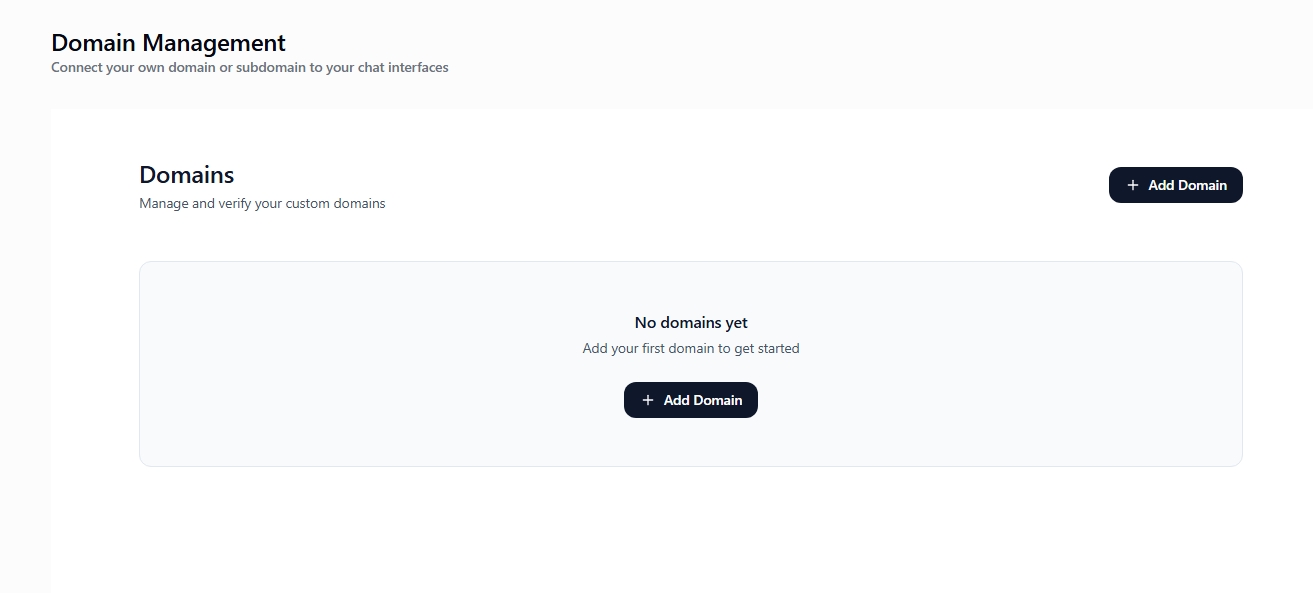
The Domain Management page is your central hub for managing all custom domains. At the top, you'll see statistics cards showing: Verified Domains count, Pending Verification count, and Active SSL certificates count. Below that is a list of all your domains, each showing the domain name, connected chat interface, verification status, SSL status, and quick action buttons. You can click on any domain to view detailed verification steps, or use the "Add Domain" button in the top right to add a new domain.
Step 2: Add Your Domain
Step 2.1: Click "Add Domain"
Button: "Add Domain" Location: Top right of the page
What Happens:
- Opens "Add Domain" dialog/form
Step 2.2: Enter Domain Information
What You'll See:
A form with fields:
- Domain Name
- Enter your domain (e.g.,
support.yourcompany.com) - Must be a valid domain format
- Chat Interface
- Dropdown to select which interface to connect
- Shows list of your active interfaces
Visual:
 Add Domain


 Domain Name *

 support.yourcompany.com


 Chat Interface *

 Customer Support


 [Cancel] [Add Domain]
Action:
- Enter your domain name
- Select the chat interface
- Click "Add Domain"
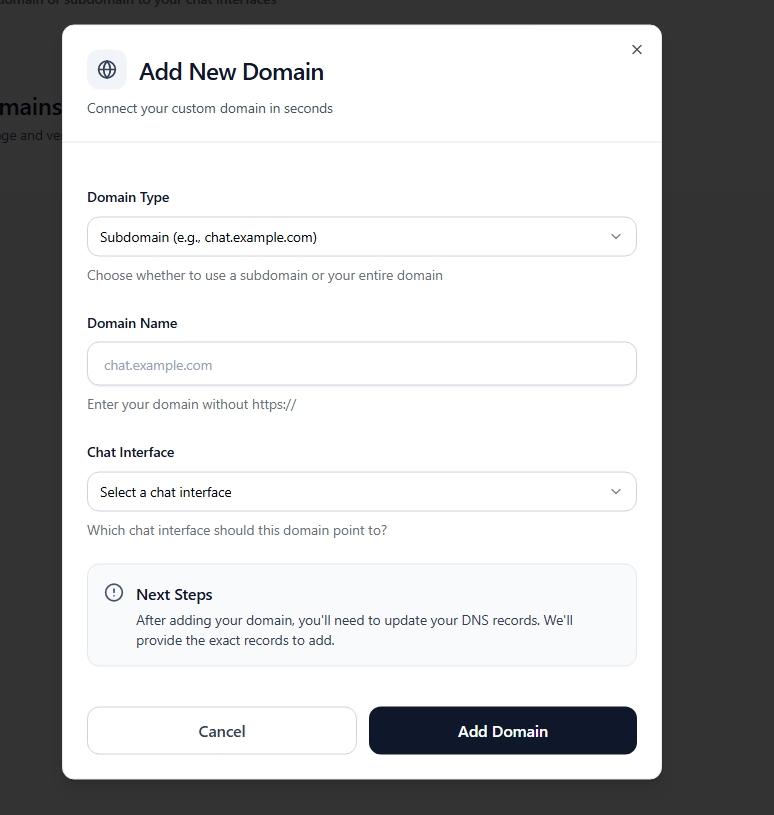
The Add Domain modal dialog appears when you click the "Add Domain" button. It shows a clean form with two required fields: Domain Name (text input) and Chat Interface (dropdown selection). Enter your full domain (e.g., support.yourcompany.com) and select which chat interface you want to connect this domain to. The modal includes Cancel and Add Domain buttons at the bottom.
Step 3: Configure DNS
What You'll See
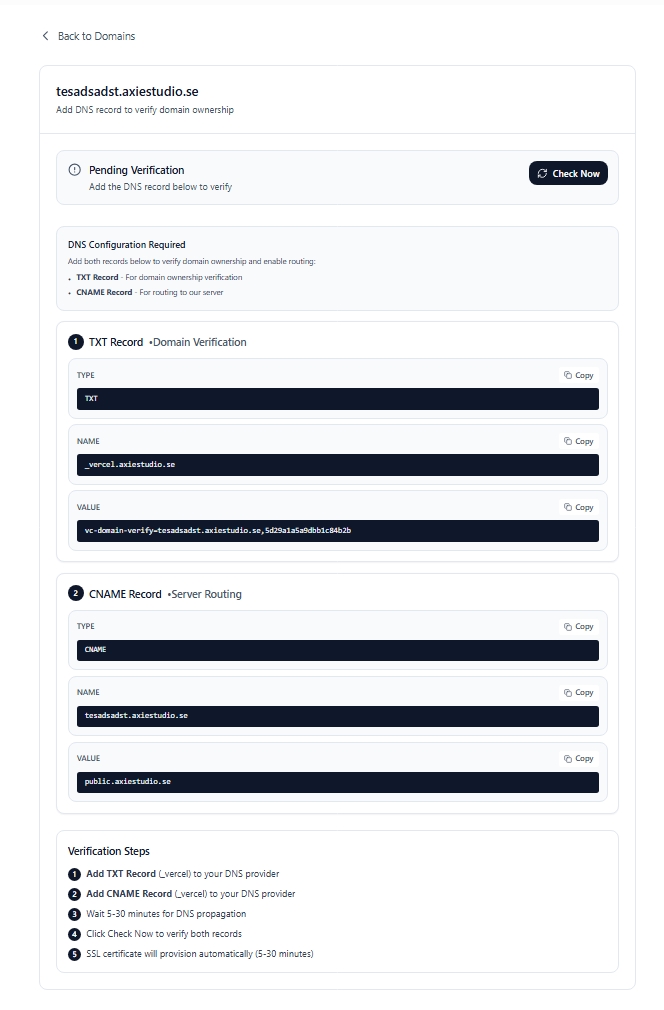
After adding your domain, click on it in the list. You'll see a detailed page with:
- Your domain name and current status
- TWO DNS records you need to add (TXT and CNAME)
- Copy buttons for each record value
- Step-by-step instructions
Step 3.1: Understand What You Need to Add
You need to add TWO DNS records to your domain:
-
TXT Record (for verification)
- This proves you own the domain
- Name is usually
_vercel(shown in instructions) - Value is a long verification code (unique to your domain)
-
CNAME Record (for routing)
- This routes traffic to Axie Studio
- Name is your subdomain (e.g.,
support) - Value is
public.axiestudio.se
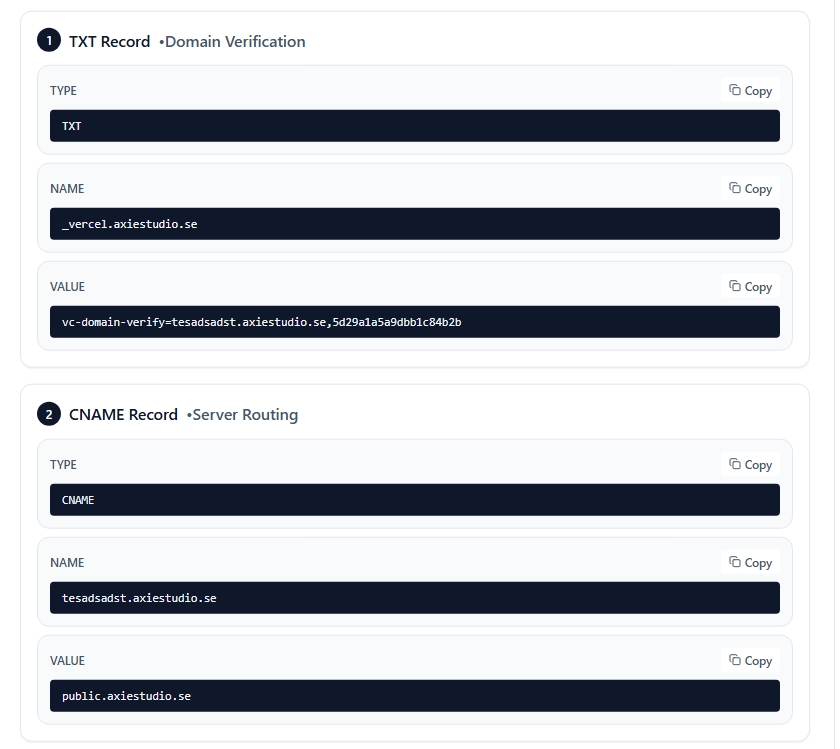
The DNS configuration screen shows you exactly what to add. You'll see both records with:
- Type: TXT or CNAME
- Name: What to enter in the "Name" field
- Value: What to enter in the "Value" field (with a copy button!)
Step 3.2: Add DNS Records to Your Registrar
Where to add these records:
- Log in to where you bought your domain (GoDaddy, Namecheap, Cloudflare, etc.)
- Find "DNS Settings" or "DNS Management"
- Look for "Add Record" or "Manage DNS Records"
Step-by-step:
-
Add the TXT record first:
- Click "Add Record" or similar button
- Type: Select TXT
- Name: Enter exactly what's shown (usually
_vercel) - Value: Paste the verification code (use the copy button!)
- TTL: Leave as default (or 3600)
- Save
-
Add the CNAME record:
- Click "Add Record" again
- Type: Select CNAME
- Name: Enter your subdomain (e.g.,
support- without the domain part) - Value: Enter
public.axiestudio.se(or what's shown in instructions) - TTL: Leave as default (or 3600)
- Save
Common registrars:
- GoDaddy: My Products → Domains → DNS → Records
- Namecheap: Domain List → Manage → Advanced DNS
- Cloudflare: Select domain → DNS → Records → Add record
- Google Domains: DNS → Custom records → Add record
Important: Make sure you add BOTH records. If you only add one, verification will fail!
Step 4: Verify Your Domain
Step 4.1: Wait for DNS Propagation
After adding DNS records, you need to wait for them to propagate (spread across the internet). This usually takes:
- 5-15 minutes: Most DNS servers updated
- 15-30 minutes: Nearly all servers updated
- Up to 48 hours: Maximum time (rare, usually much faster)
What's happening:
- Your DNS changes are spreading to DNS servers worldwide
- Different locations will see the changes at different times
- This is normal and expected!
While you wait:
- You can check your DNS records using online tools (like
dnschecker.org) - Or wait 10-15 minutes and proceed to verification
Step 4.2: Click "Verify Domain"
Once you've waited 10-15 minutes (or checked that DNS is live):
- Go back to your Axie Studio dashboard
- Click on your domain in the list
- You'll see the verification page
- Click the "Verify Domain" button
What happens:
- Status changes to "Checking" immediately
- System checks if your DNS records are correct
- Takes about 5-10 seconds
- Status updates to "Verified" or "Failed"
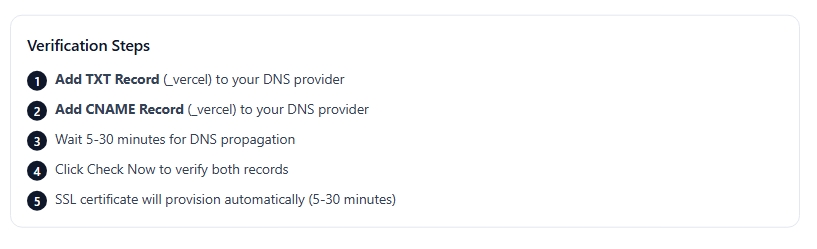
The verification page shows you everything:
- Current status (Pending, Checking, Verified, or Failed)
- All DNS records you need (with copy buttons)
- Which chat interface is connected (you can change this)
- SSL certificate status
- Activation controls
Understanding the statuses:
- Pending: Domain added, waiting for you to add DNS records
- Checking: We're verifying your DNS right now (happens in seconds)
- Verified: ✅ Success! Your DNS is correct. SSL certificate is being provisioned.
- Failed: DNS records aren't correct - double-check them and try again
Step 4.3: If Verification Fails
Don't panic! This is usually easy to fix:
-
Check your DNS records:
- Did you add BOTH the TXT and CNAME records?
- Are the values copied exactly (no extra spaces)?
- Did you wait long enough for DNS to propagate?
-
Use a DNS checker:
- Go to
dnschecker.org - Check if your TXT and CNAME records are visible
- If they're not showing, wait longer and try again
- Go to
-
Try again:
- Wait 10-15 more minutes
- Click "Verify Domain" again
- Most issues resolve after waiting for DNS propagation
Step 5: Activate Your Domain
Important: Verification ≠ Activation
This is a common point of confusion! After your domain shows "Verified", it's NOT live yet. You need to activate it separately.
Why? This is a security feature:
- Prevents domains from going live accidentally
- Gives you control over when domains are accessible
- Lets you verify everything is correct before going live
Step 5.1: Activate Your Domain
Once your domain shows "Verified":
- On the verification page, look for the "Activate" button or toggle switch
- Click it to activate your domain
- Status will change to "Active"
- Your domain is now live! 🎉
What happens when you activate:
- Domain immediately starts routing traffic
- Visitors can access your chat interface at your domain
- Status changes from "Verified" to "Active"
- Changes are instant (no waiting needed)
The configuration summary shows you everything at once:
- Domain name and full status
- Connected chat interface (with ability to change it)
- Verification status (should be "Verified")
- SSL certificate status (may still be "Pending" - that's okay, it takes 5-30 minutes)
- Activation status (Active/Inactive toggle)
- All DNS records (for reference)
Note about SSL: Your SSL certificate might still show "Pending" even after activation. This is normal! SSL certificates are provisioned automatically by Vercel and usually take 5-30 minutes after verification. Your domain will work with HTTPS once the SSL is ready.
Step 6: Test Your Domain
What You'll See
After activation, your domain is live!
Step 6.1: Visit Your Domain
Action:
- Open a browser
- Visit
https://support.yourcompany.com - You should see your chat interface!
Visual:
Browser Address Bar:
https://support.yourcompany.com


 [Your Logo]

 Welcome Message

 [Chat Messages]

 [Input Field]
Step 6.2: Verify It Works
Check:
- Domain loads your chat interface
- URL shows your domain (not Axie Studio's)
- SSL certificate is valid (lock icon in browser)
- Chat interface functions normally
Visual Workflow Summary
 STEP 1: Navigate to Domains
 Dashboard Domains


 STEP 2: Add Domain
 [Add Domain] Enter domain & select interface


 STEP 3: Configure DNS
 Add CNAME or A record to your DNS
 Type: CNAME
 Name: support
 Value: cname.vercel- dns.com


 STEP 4: Wait for Propagation
 DNS propagates (5- 60 min)
 SSL provisions (5- 30 min)
 Status: Pending Verifying Verified


 STEP 5: Activate Domain
 [Activate Domain] button
 Status: Verified Active


 STEP 6: Test Domain
 Visit https://support.yourcompany.com
 Verify chat interface loads
 Domain is live!
Common Issues & Quick Fixes
"Verification Failed" or Stuck on "Checking"
What this means:
- DNS records aren't being found
- Or records aren't correct
How to fix:
-
Double-check your DNS records:
- Did you add BOTH TXT and CNAME?
- Are the values copied exactly (no typos, no extra spaces)?
- Are the record types correct (TXT, not "text"; CNAME, not "cname")?
-
Check DNS propagation:
- Go to
dnschecker.org - Enter your domain
- Check if your TXT and CNAME records show up
- If they don't, wait longer (can take 30-60 minutes)
- Go to
-
Wait and retry:
- DNS propagation takes time
- Wait 15-30 minutes after adding records
- Click "Verify Domain" again
SSL Certificate Shows "Pending" or "Not Secure"
This is normal! SSL certificates take time to provision.
What's happening:
- SSL is provisioned automatically by Vercel
- Happens AFTER domain verification
- Usually takes 5-30 minutes
- Sometimes up to 1 hour
What to do:
- Nothing! Just wait
- SSL will become "Active" automatically
- Your domain will work, just might show "Not Secure" temporarily
- Once SSL is active, you'll see the lock icon (🔒)
Domain Shows "Verified" But Returns 404 or Doesn't Load
Most common cause: Domain is verified but not activated!
Fix:
- Go to your domain in dashboard
- Look for "Activate" button or toggle
- Click it to activate
- Status should change to "Active"
- Wait 2-3 minutes, then try visiting again
Other things to check:
- Is your chat interface active? (Go to Chat Interfaces page)
- Did you wait a few minutes after activation? (Cache refresh)
- Try visiting in incognito/private mode
"Domain Already Exists" Error
This means:
- The domain was already added (maybe by you, maybe by someone else)
- Or it's a reserved domain
What to do:
- Check your domains list - you might have already added it
- If it's not there, contact support
- Try a different subdomain (e.g.,
chat.yourcompany.cominstead ofsupport.yourcompany.com)
Can't Change Chat Interface
You can change it! Here's how:
- Click on your domain in the list
- On the verification/summary page, you'll see a dropdown for "Chat Interface"
- Select a different interface
- Changes take effect immediately (no re-verification needed)
Note: You can change which interface a domain points to anytime, even after it's active. This is useful if you want to test different interfaces or switch between them.
Best Practices
Use Subdomains
Use support.yourcompany.com rather than yourcompany.com. This is:
- Easier to configure
- Safer (doesn't affect main domain)
- More flexible
Test DNS First
Before adding domain, test DNS records:
- Use online DNS checkers
- Verify records are correct
- Wait for propagation
Keep Domain Active
- Don't delete DNS records
- Keep domain active in dashboard
- Monitor for issues
Use HTTPS
Always use https:// when testing. SSL is automatic but requires HTTPS.
Next Steps
- [Create a chat interface ](/docs/chat- interface/intro)
- [Add a knowledge base ](/docs/knowledge- base/intro)
- View analytics
Ready to set up your domain? Go to Dashboard Domains Add Domain!