intro
sidebar_position: 1
Knowledge Base & Document Q&A
Upload documents and enable AI- powered Q&A. Your documents become searchable knowledge that AI can reference when answering customer questions.
What is a Knowledge Base?
A knowledge base lets you:
- Upload documents (PDF, DOCX, TXT)
- Enable AI to search your documents
- Answer questions using your content
- Provide accurate, source- backed responses
When customers ask questions, AI searches your documents and provides answers with source citations.
Why Use a Knowledge Base?
Accurate Answers
AI answers questions using YOUR content, not generic information.
Source Citations
Every answer includes which document it came from. Builds trust.
Always Up- to- Date
Update your documents, and AI automatically uses the latest information.
No Training Required
Just upload documents - no need to train the AI separately.
How It Works
Customer asks a question

AI searches your documents

Finds relevant information

Generates answer with sources

Customer sees answer + citations
Creating a Knowledge Base
Step 1: Create Knowledge Base
- Go to Dashboard -> Knowledge Base
- Click "Create New Knowledge Base"
- Enter a name (e.g., "Product Documentation")
- Add a description (optional)
Step 2: Configure AI Settings
Choose how AI will process your documents:
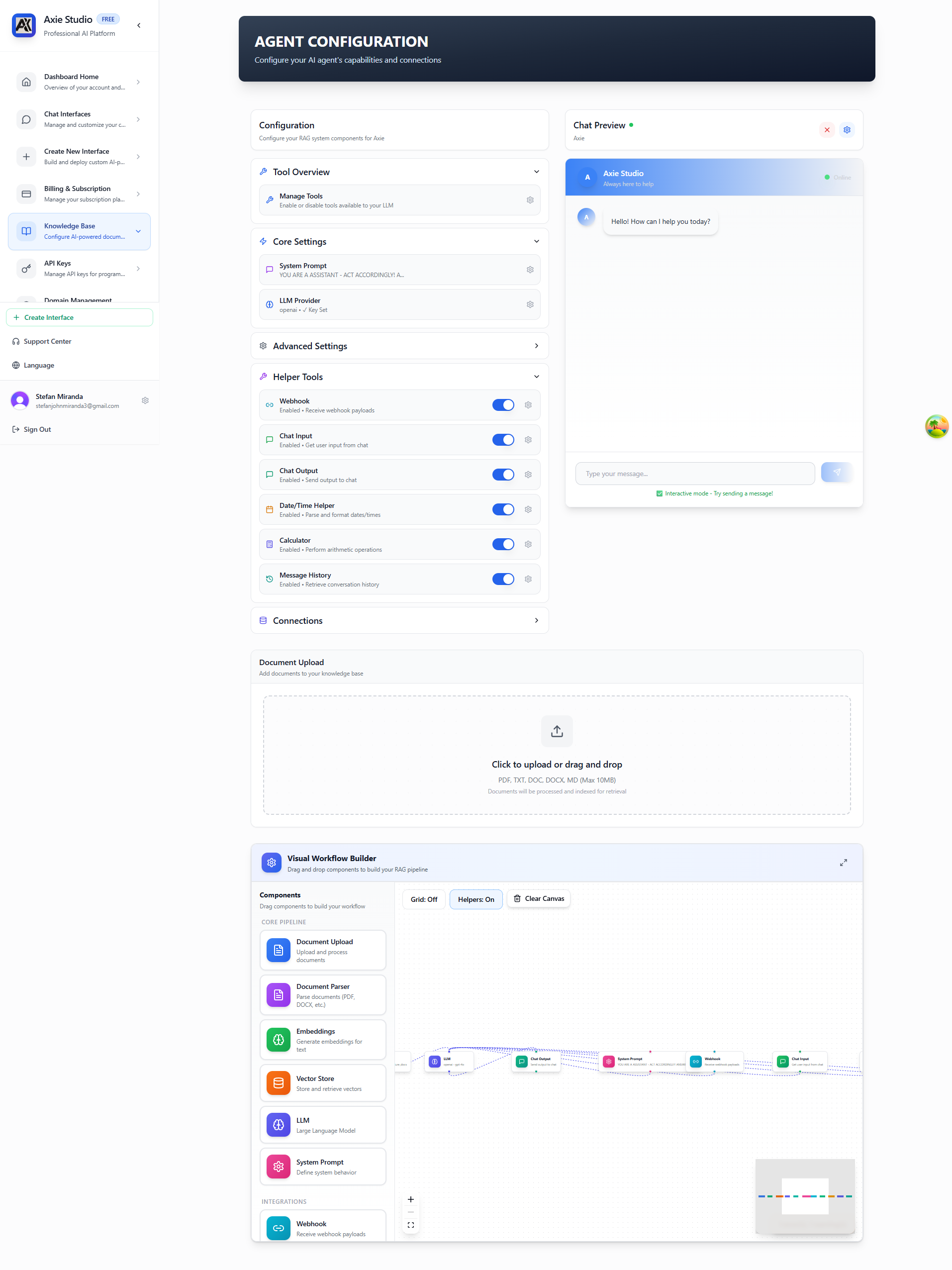
The Knowledge Base page provides a comprehensive interface for configuring your RAG system. On the left, you'll see configuration sections organized in an accordion layout, and on the right, a live chat preview where you can test your knowledge base. The page also includes a visual workflow builder at the bottom that shows how your RAG pipeline components are connected.
LLM Provider & Model:
- AI Provider: OpenAI, Cloudflare Workers AI, or DeepSeek
- AI Model: Choose a model (e.g., GPT-5, GPT-4o, Llama 3.1 8B/70B, DeepSeek Chat/Coder)
Embeddings & Vector Store:
- Embedding Model: Voyage AI 3 Large for document search
- Vector Store: ChromaDB Cloud (serverless) - requires API key, Tenant ID, and Database name
Document Processing:
- Parser: Default (serverless) or Reducto AI for advanced parsing
Response Settings:
- Temperature: Control creativity (0.0 = factual, 2.0 = creative)
- Max Tokens: Limit response size (default: 2000)
- Top-K: Number of document chunks to retrieve (default: 5)
Start with default settings. You can always adjust later!
Step 3: Upload Documents
- Scroll to the "Document Upload" section
- Click the upload area or drag and drop files
- Select files (PDF, DOCX, TXT, DOC, MD - Max 10MB per file)
- Wait for processing (usually 1-2 minutes per document)

The document upload section is at the bottom of the Knowledge Base page. You can drag and drop files or click to browse.
What happens:
- Text is extracted from your document
- Document is split into searchable chunks
- AI creates searchable embeddings using Voyage AI
- Document is stored securely in ChromaDB Cloud
Step 4: Connect to Chat Interface
- Select a chat interface to connect
- Your knowledge base will power RAG queries
- Test it by asking questions in the chat!
Supported File Types
PDF Files
- Standard PDFs
- Text- based PDFs work best
- Scanned PDFs may need OCR first
DOCX Files
- Microsoft Word documents
- Preserves formatting
- Tables and lists supported
TXT Files
- Plain text files
- UTF- 8 encoding
- Simple and fast
Maximum file size: 10MB per file. For larger documents, split them into multiple files.
Using Your Knowledge Base
In Chat Interface
Once connected, customers can ask questions like:
- "What are your return policies?"
- "How do I reset my password?"
- "What features are included in the Pro plan?"
AI will:
- Search your documents
- Find relevant information
- Generate an answer
- Cite the source document
Example Response
Customer: "What's your refund policy?"

AI: "Our refund policy allows returns within 30 days of purchase.
You can request a refund by contacting support@yourcompany.com.

Source: Returns Policy.pdf, page 3"
Best Practices
Use Clear Documents
- Well- structured documents work best
- Use headings and sections
- Keep content organized
Update Regularly
- Keep documents current
- Remove outdated information
- Add new content as needed
Test Questions
- Test common questions
- Verify answers are accurate
- Improve documents based on results
Organize by Topic
- Create separate knowledge bases for different topics
- Product docs, support docs, policies, etc.
- Connect relevant knowledge bases to relevant interfaces
Managing Documents
View Uploaded Documents
- See all documents in your knowledge base
- View processing status
- Check document metadata
Remove Documents
- Remove outdated documents
- Documents are removed from search immediately
- No impact on existing conversations
Update Documents
- Upload a new version
- Old version is automatically replaced
- AI uses the latest version
Understanding RAG (Retrieval Augmented Generation)
RAG (Retrieval Augmented Generation) is how AI answers questions using your documents:
- Retrieval: AI searches your documents for relevant information
- Augmentation: AI combines found information with its knowledge
- Generation: AI generates an answer using both sources
This means AI answers are:
- Based on YOUR content
- Accurate and up- to- date
- Include source citations
- More reliable than generic answers
How RAG Works
Customer asks: "What's your refund policy?"
 ↓
AI searches your documents
 ↓
Finds relevant information in "Returns Policy.pdf"
 ↓
AI generates answer using that information
 ↓
Customer sees: "Our refund policy allows returns within 30 days..."
 + Source: Returns Policy.pdf, page 3
AI Providers & Configuration
Axie Studio supports multiple AI providers. Choose the one that works best for you:
OpenAI
- Best for: High- quality, general- purpose responses with large context windows
- Models:
- GPT- 5 (400k context window) - Latest model, best for complex documents
- GPT- 4o (128k context window) - Optimized for quality and speed
- GPT- 4o Mini (128k context window) - Cost- effective option
- GPT- 4 Turbo (128k context window) - High- performance option
- When to use: When you need the best quality answers and large context windows
Cloudflare Workers AI
- Best for: Fast, cost- effective responses with serverless architecture
- Models:
- Llama 3.1 8B Instruct (8k context window) - Fast and efficient
- Llama 3.1 70B Instruct (8k context window) - Higher quality, larger model
- When to use: When speed and cost matter, or for serverless deployments
DeepSeek
- Best for: Technical and coding questions
- Models:
- DeepSeek Chat (32k context window) - General purpose
- DeepSeek Coder (16k context window) - Optimized for code
- When to use: For technical documentation and coding- related queries
Choosing an AI Provider
- Go to Dashboard -> Knowledge Base
- Select your knowledge base
- Go to AI Settings
- Choose your provider
- Select a model
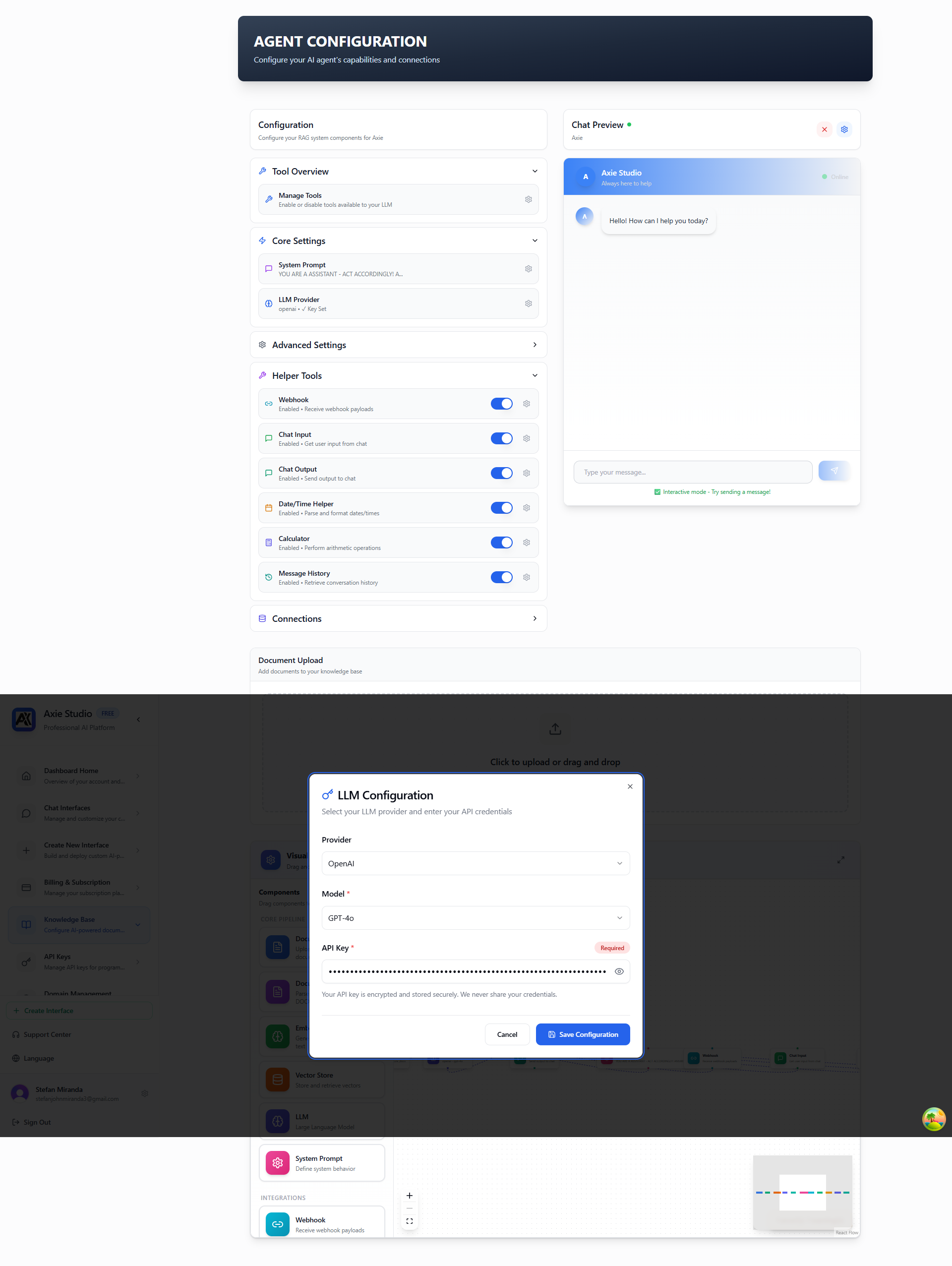
Configure your AI provider and model settings to control how your AI agent generates responses. Multiple providers are supported including OpenAI (GPT- 5, GPT- 4o), Cloudflare Workers AI (Llama 3.1), and DeepSeek (Chat/Coder).
Temperature Settings
Control how creative AI responses are:
- 0.0 - 0.3: Very factual, consistent answers
- 0.4 - 0.7: Balanced (recommended)
- 0.8 - 1.0: More creative, varied answers
- 1.1 - 2.0: Very creative (use carefully)
Recommended: Start with 0.7 for balanced responses.
Response Length
Control how long answers are:
- Short (100- 200 tokens): Brief, concise answers
- Medium (200- 500 tokens): Detailed answers (recommended)
- Long (500+ tokens): Very detailed, comprehensive answers
Recommended: Start with 500 tokens for detailed but not overwhelming answers.
Document Processing & Search
How Documents Are Processed
When you upload a document:
- Text Extraction: Text is extracted from PDF/DOCX/TXT
- Chunking: Document is split into searchable pieces
- Embedding: Each chunk gets a searchable "fingerprint"
- Storage: Chunks are stored in a searchable database
Embeddings Configuration
Axie Studio uses Voyage AI for document embeddings:
- Model: Voyage AI 3 Large (voyage- 3- large)
- Purpose: Converts document chunks into searchable vector embeddings
- Quality: High- quality embeddings for accurate semantic search
Chunking Explained
Documents are split into "chunks" for better search:
- Chunk Size: Default 512 tokens (about 400 words)
- Overlap: 50 tokens between chunks (ensures context)
- Why: Smaller chunks = more precise search results
You can adjust chunk size in advanced settings if needed.
Document Parsers
Choose how documents are processed:
- Default Parser (Serverless): Handles PDF, TXT, DOCX files automatically
- Reducto AI: Advanced parsing for complex documents (requires API key)
Vector Store
Axie Studio uses ChromaDB Cloud (serverless) for vector storage:
- Type: ChromaDB Cloud - Fully managed, serverless
- Benefits: No infrastructure to manage, automatic scaling
- Configuration: Requires ChromaDB Cloud API key, Tenant ID, and Database name
How Search Works
When a customer asks a question:
- Query Embedding: Question is converted to a searchable format
- Similarity Search: System finds most relevant document chunks
- Top- K Retrieval: Gets top 5 most relevant chunks (default)
- Context Building: Combines chunks into context
- Answer Generation: AI generates answer using context
Top- K Settings
Control how many document chunks to use:
- Lower (3- 5): More focused, faster
- Higher (7- 10): More comprehensive, slower
Recommended: Start with 5 chunks for balanced results.
Advanced Settings
System Prompt
Customize how AI responds:
- Set the tone (formal, casual, friendly)
- Define response style
- Add specific instructions
Chunk Settings
Control how documents are split:
- Chunk size (default: 512 tokens)
- Overlap between chunks (default: 50 tokens)
- Optimize for your content type
Retrieval Settings
Control search behavior:
- Number of chunks to retrieve (Top- K)
- Similarity threshold
- Maximum context length
Source Citations
Every answer includes where information came from:
Answer: "Our refund policy allows returns within 30 days..."

Source: Returns Policy.pdf, page 3
This helps:
- Build customer trust
- Verify information accuracy
- Find original documents
- Improve documentation
Troubleshooting
AI Not Finding Information?
Try:
- Make sure information is in your documents
- Check if documents processed successfully
- Try rephrasing the question
- Increase Top- K value
Answers Not Accurate?
Improve:
- Make documents more specific
- Add more examples
- Adjust system prompt
- Try different AI models
- Lower temperature for more factual answers
Slow Responses?
Optimize:
- Use faster AI models (Cloudflare)
- Reduce Top- K value
- Check document size
- Optimize chunk settings
Processing Failed?
Fix:
- Check file format (PDF, DOCX, TXT only)
- Verify file size (max 10MB)
- Try a different file
- Contact support if issues persist
Next Steps
- [Create a chat interface ](/docs/chat- interface/intro)
- Set up custom domain →
- View analytics
Ready to add documents? Go to Dashboard Knowledge Base and create your first knowledge base!