Tools & Integrations
Extend your chat interface with powerful tools and integrations. Enable form handling, webhooks, calculations, and connect to external services through Composio.
What Are Tools?
Tools extend what your AI can do:
- Search your knowledge base for document-based information
- Display forms to collect customer data
- Perform calculations with the calculator tool
- Send webhooks to external systems
- Connect to external services via Composio (Gmail, Google Calendar, etc.)
- Manage conversations with message history and chat I/O
- And much more!
Why Use Tools?
Extend AI Capabilities
AI can do more than just answer questions - it can take actions!
Connect to Services
Integrate with your existing tools and services.
Automate Tasks
Handle forms, send emails, update databases automatically.
Better Customer Experience
Customers get things done faster with automated actions.
Available Tools
Core Tools
Always available when enabled:
- search_knowledge_base: Search your documents for relevant information (always enabled with Knowledge Base)
- Automatically searches your uploaded documents
- Returns relevant chunks with source citations
- Integrated into the RAG pipeline
Advanced Tools
Configurable via Tool Overview:
-
show_form: Display configurable forms to collect structured information
-
Create custom forms for lead generation, surveys, support tickets
-
Forms appear dynamically in chat conversations
-
Visual node: FormBuilderNode
-
show_booking_form: Display booking forms for appointments and scheduling
-
Create booking forms with date, time, and duration selection
-
Perfect for scheduling consultations, meetings, and appointments
-
Forms appear dynamically when customers want to book
-
Visual node: BookingNode
-
sequential_thinking: Use sequential thinking to break down complex problems
-
Helps AI reason through multi- step problems
-
Improves accuracy for complex queries
-
webhook: Send data to external URLs via webhooks
-
Real- time integration with external systems
-
Supports custom headers and authentication
-
Visual node: WebhookNode
-
chat_input: Get user input from chat interface
-
Captures user messages and queries
-
Visual node: ChatInputNode
-
chat_output: Send output to chat interface
-
Formats and displays AI responses
-
Visual node: ChatOutputNode
-
date_time_helper: Parse and format dates/times
-
Operations: parse, format, extract, relative, add, subtract, current
-
Visual node: DateTimeHelperNode
-
calculator: Perform arithmetic operations and calculations
-
Handles mathematical computations
-
Visual node: CalculatorNode
-
message_history: Retrieve conversation history
-
Maintains context across conversations
-
Visual node: MessageHistoryNode
-
query_memori: Query memories from previous conversations
-
Access information from past conversations
-
Recall user preferences and previous discussions
-
Automatically saves conversations for future reference
-
Visual node: MemoriNode
Composio Tools
100+ pre- built integrations:
- Email: Send emails via Gmail, Outlook, etc.
- CRM: Connect to Salesforce, HubSpot, etc.
- Databases: Query databases
- APIs: Connect to any API
- And more: 100+ integrations available
Enabling Tools
Step 1: Go to Tool Overview
- Go to Dashboard -> Knowledge Base
- Select your knowledge base (or create one if you don't have one)
- Scroll to the "Tool Overview" section
- Click "Manage Tools" button
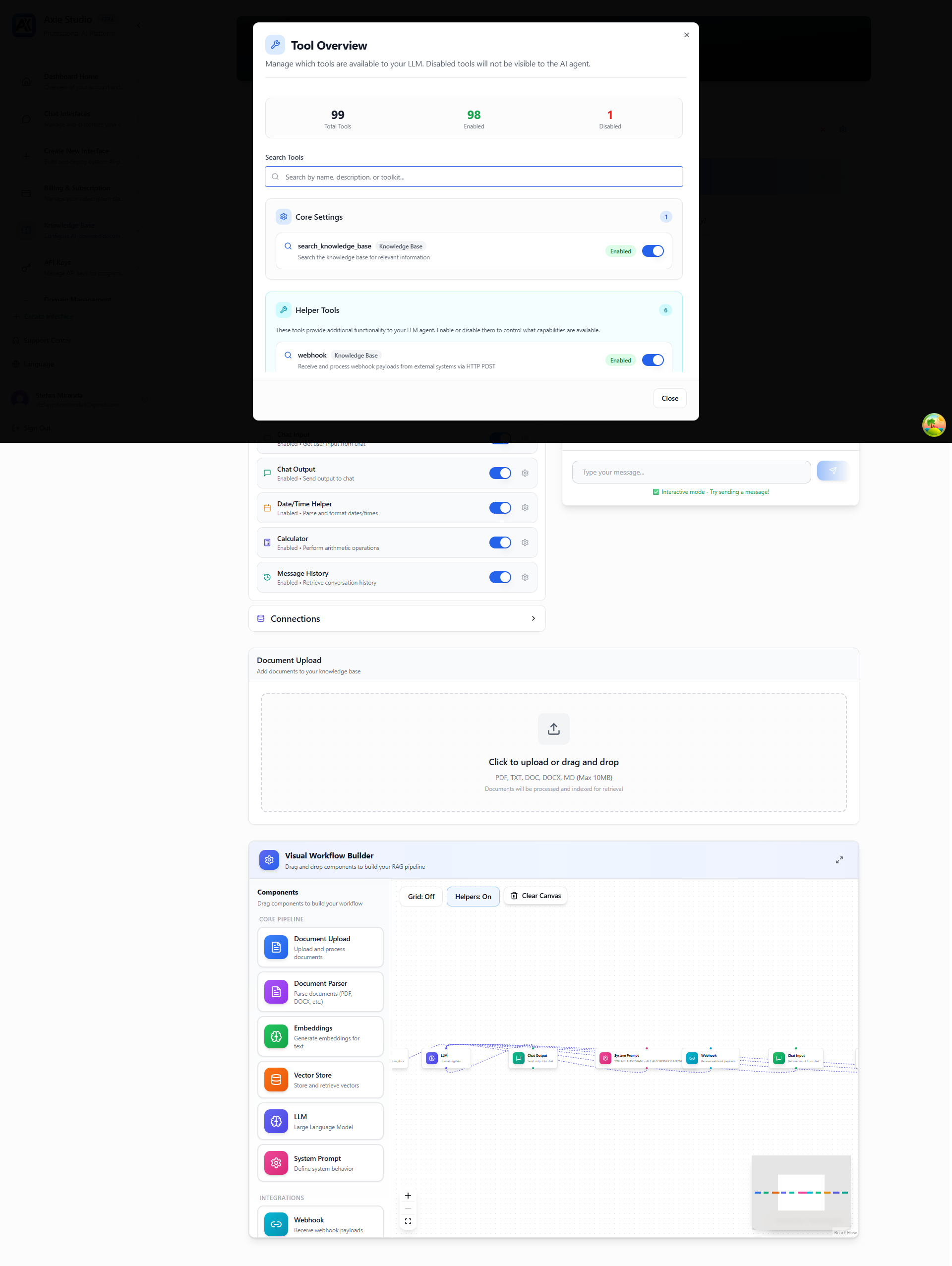
The Tool Overview dialog shows all available tools organized by category, allowing you to enable or disable tools for your AI agent.
Step 2: Enable Tools
- Browse available tools
- Click to enable tools you want
- Configure tool settings (if needed)
- Save changes
Start with a few tools. You can always add more later!
Step 3: Test Tools
- Go to your chat interface
- Try using the tools
- Verify they work correctly
- Adjust settings as needed
Visual Workflow Builder
Build complex workflows visually:
Drag- and- Drop Interface
- Drag tools onto canvas
- Connect tools with lines
- Configure each tool
- Test workflows
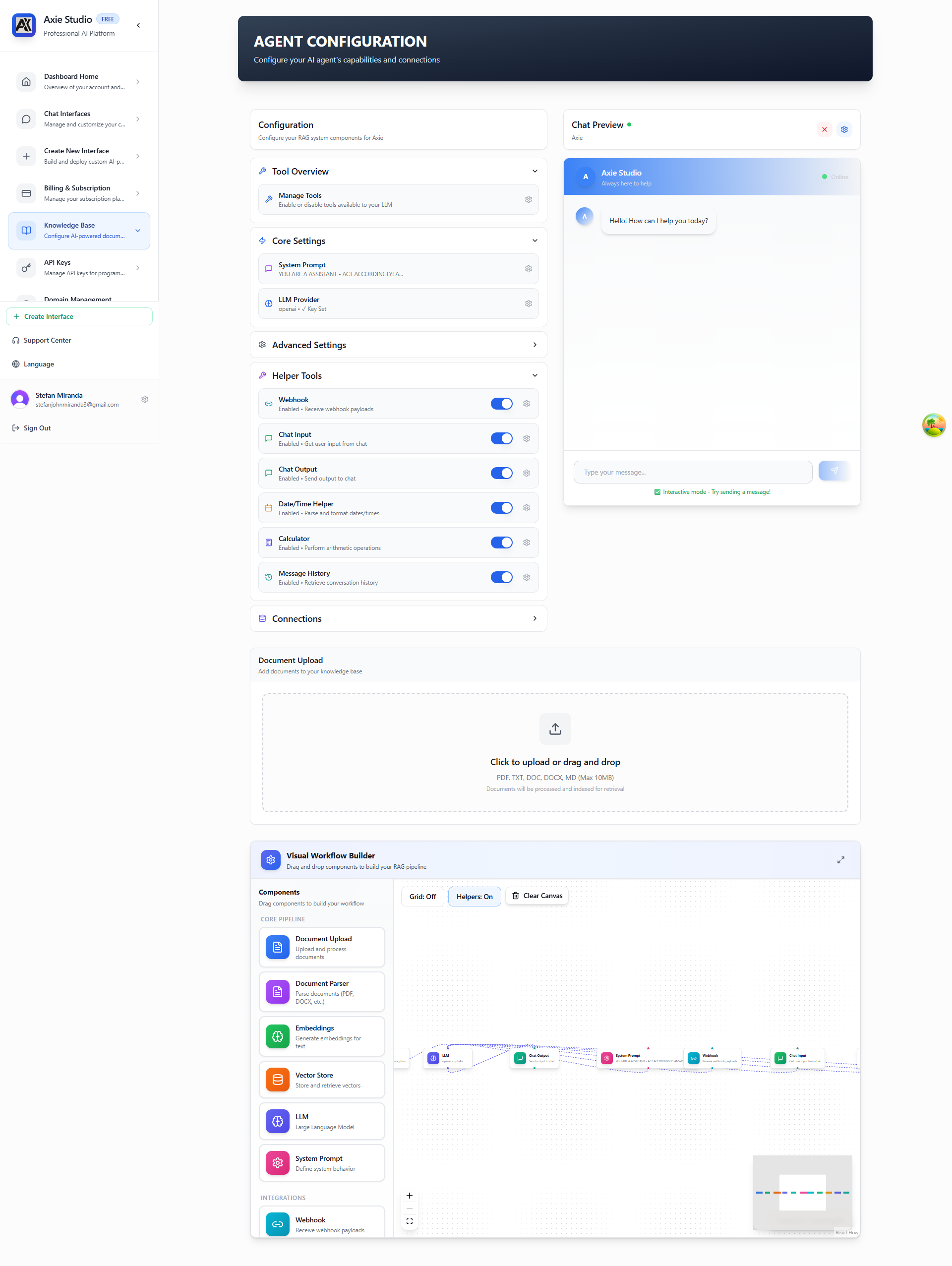
The Visual Workflow Builder shows your complete RAG pipeline with all connected components, making it easy to understand and modify your AI agent's workflow.
Workflow Types
Simple Workflow:
User Question Tool Response
Complex Workflow:
User Question Tool 1 Tool 2 Tool 3 Response
When to Use Workflows
Use workflows for:
- Multi- step processes
- Complex integrations
- Conditional logic
- Automated sequences
Form Builder
Create dynamic forms that collect data from customers during conversations. Perfect for lead generation, surveys, and data collection.
What is Form Builder?
Form Builder lets you:
- Create custom forms
- Collect customer data
- Integrate with your workflow
- Store form submissions
- Export form data
Forms appear in chat conversations when AI determines they're needed.
Creating Your First Form
- Go to Dashboard -> Knowledge Base
- Scroll to "Form Builder" section
- Click "Create Form" or "Configure"
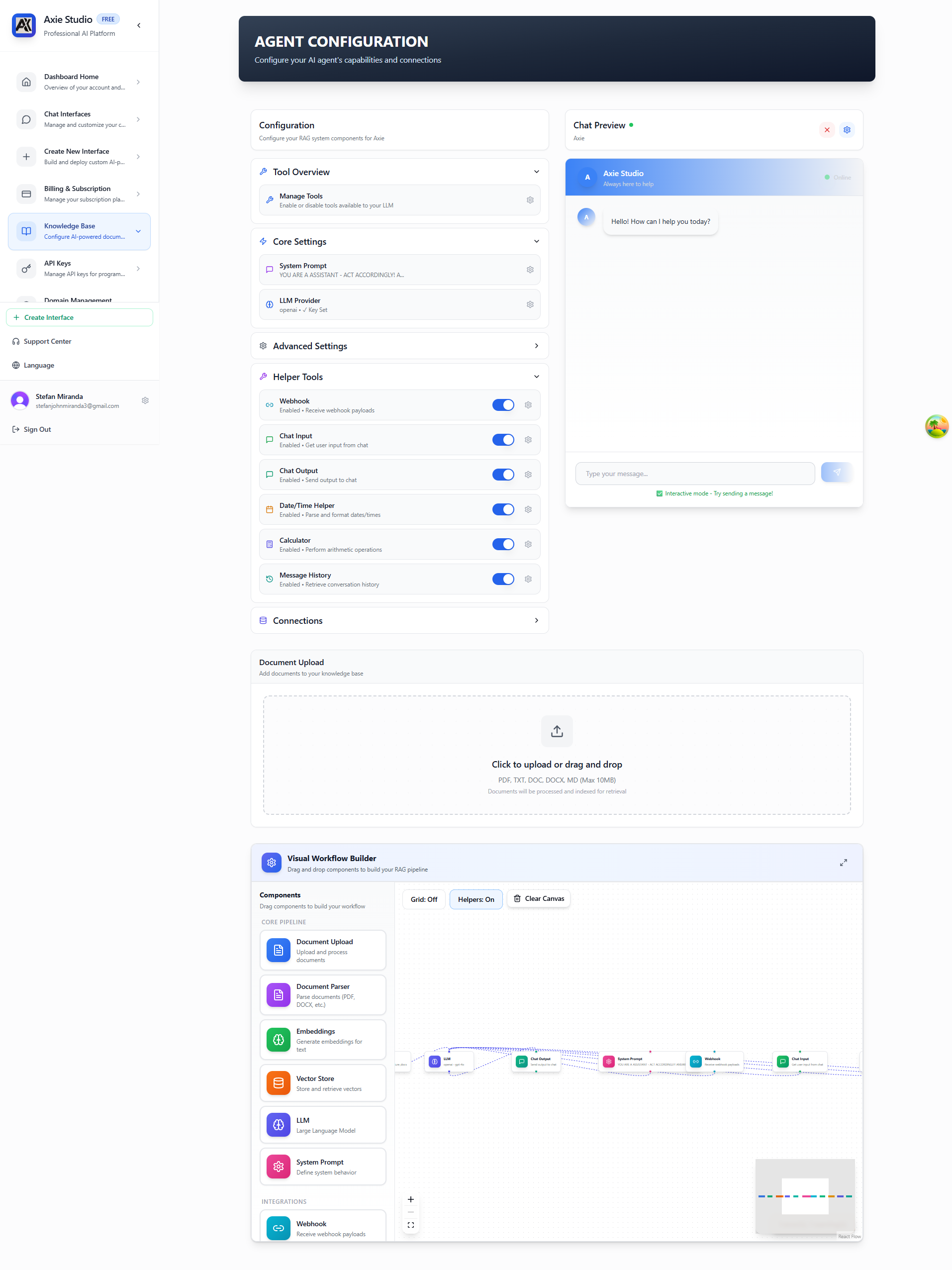
The Form Builder is accessible from the Knowledge Base configuration page, where you can create and manage dynamic forms for data collection.
Form Field Types
- Text: Single- line text input
- Email: Email address validation
- Number: Numeric input
- Date: Date picker
- Select: Dropdown menu
- Textarea: Multi- line text
Form Configuration
When Forms Appear:
- AI Decides: AI shows form when needed
- Manual Trigger: Show form on command
- Conditional: Show based on conditions
Form Display:
- Forms appear as interactive cards in chat
- Fields are clearly labeled
- Submit button at bottom
- Mobile- responsive
Example Forms
Lead Generation Form:
- Name, Email, Company, Phone, Message
Support Ticket Form:
- Subject, Category, Priority, Description, Attachments
Survey Form:
- Rating, Feedback, Category, Would Recommend
Webhooks
Configure webhooks to send data from your chat interfaces to external URLs. Perfect for integrations, notifications, and custom workflows.
What Are Webhooks?
Webhooks let you:
- Send data to external URLs
- Trigger actions in other systems
- Integrate with your apps
- Get real- time notifications
- Build custom workflows
When events happen in your chat interface, webhooks send data to your specified URL.
Setting Up Webhooks
- Go to Dashboard -> Knowledge Base
- Scroll to "Webhook" section
- Click "Configure"
Settings:
- Webhook URL: Your endpoint URL
- HTTP Method: POST, PUT, or PATCH
- Headers: Custom headers (optional)
- Authentication: API key or token (optional)
- Events: Which events trigger webhook
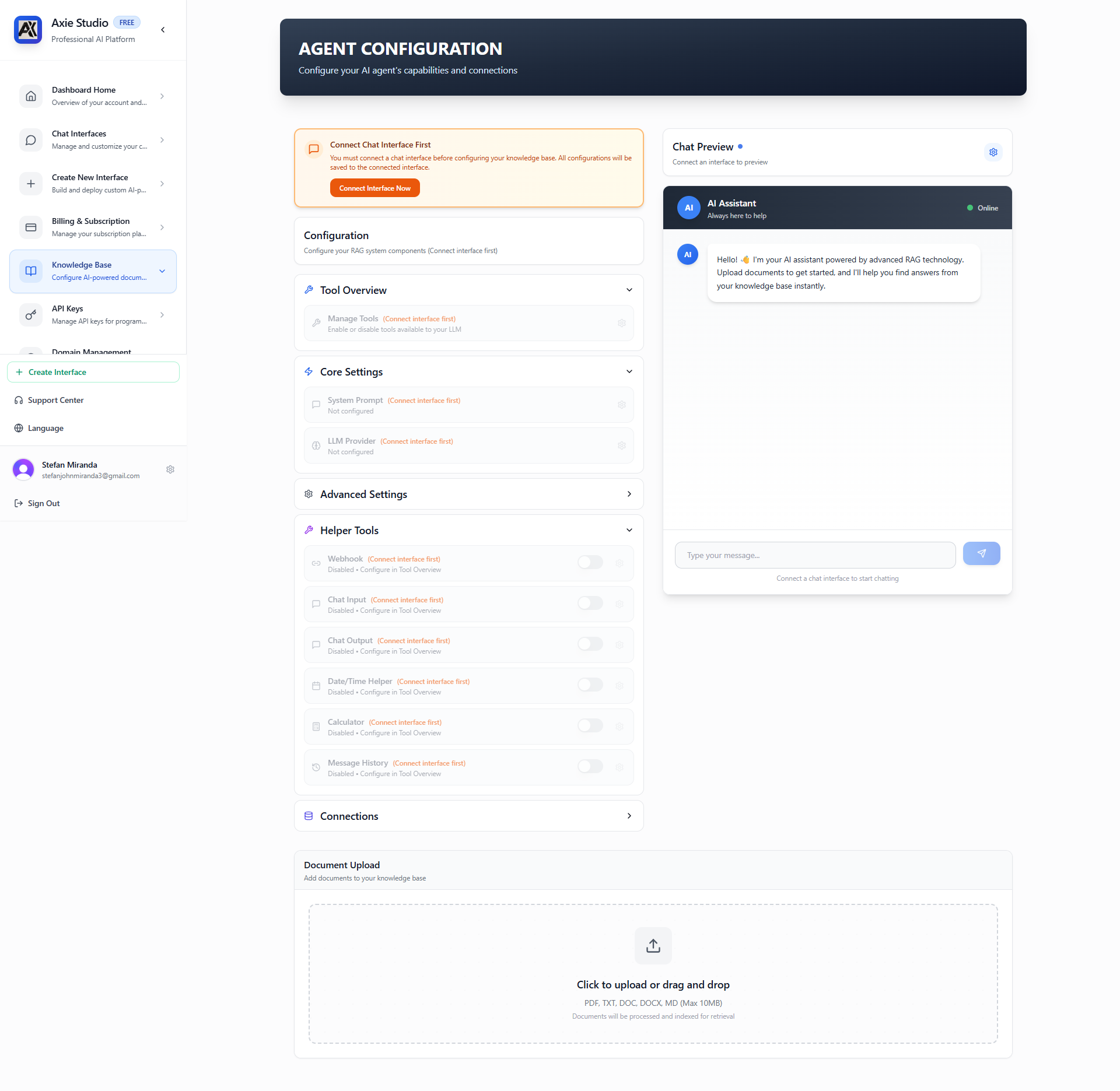
The webhook configuration dialog allows you to set up your webhook endpoint, authentication, and select which events should trigger the webhook.
Webhook Events
Message Events:
- New message received
- AI response generated
- Message processed
Form Submission Events:
- Form submitted
- Form data collected
Tool Execution Events:
- Tool executed
- Tool completed
- Tool failed
Common Use Cases
- CRM Integration: Send leads and customer messages
- Database Storage: Save conversations and form data
- Notifications: Send alerts for important events
- Custom Workflows: Trigger actions in other systems
Composio Integration
Connect your external tools and services through Composio. Enable AI to send emails, check calendars, manage spreadsheets, and more.
What is Composio?
Composio is an integration platform that lets you:
- Connect 100+ tools and services
- Enable AI to use external tools
- Automate workflows
- Integrate with Gmail, Google Calendar, Slack, and more
Your AI can now perform actions in your connected accounts!
Setting Up Composio
- Go to Composio Dashboard
- Sign up or log in
- Navigate to API Keys
- Create a new API key
- Copy the API key
Configure in Axie Studio:
- Go to Dashboard -> Knowledge Base
- Scroll to "Composio" section
- Click "Configure" or "Settings"
- Enter your Composio API key
- Click "Save"
The Knowledge Base configuration page includes sections for Composio integration, allowing you to connect external tools and services to your AI agent.
Available Composio Tools
Gmail Tools:
- Send emails from your Gmail account
- List emails, create drafts, search emails
Google Calendar Tools:
- Check availability, find free time slots
- Create events, book meetings, schedule appointments
Google Sheets Tools:
- Read spreadsheet data
- Update cells, batch updates, create new sheets
Google Drive Tools:
- Upload documents
- List files, search files, share files
Calendly Tools:
- Get event details
- Create scheduling links
- Create one- off events
How It Works
AI Tool Calling Process:
- User asks AI to perform action
- AI recognizes tool needed
- AI calls Composio tool
- Tool executes in your account
- Result returned to AI
- AI responds to user
Example: User says "Send an email to john@example.com saying hello"
- AI recognizes email action needed
- Calls
GMAIL_SEND_EMAILtool - Tool sends email via Gmail
- Confirms email sent
- Responds to user: "Email sent!"
Common Use Cases
- Email Automation: Send follow- up emails automatically
- Calendar Booking: Check availability and create events
- Data Collection: Write form data to Google Sheets
- File Management: Save documents to Google Drive
Detailed Tool Guides
Core Tools
search_knowledge_base
What it does: Automatically searches your uploaded documents when customers ask questions.
How it works:
- Customer asks a question
- AI searches your knowledge base for relevant information
- Finds the most relevant document chunks
- Uses that information to answer the question
- Shows sources so customers know where the answer came from
When to use: Always enabled when you have a knowledge base. Perfect for document-based Q&A.
Example:
Customer: "What's your return policy?"
AI: [Searches knowledge base] "According to our return policy document, you can return items within 30 days..."
[Shows source: Return Policy.pdf]
Advanced Tools
show_form
What it does: Displays forms in chat conversations to collect customer information.
How it works:
- Customer asks something that needs information
- AI recognizes a form would help
- Form appears in the chat
- Customer fills it out
- Information is saved
When to use: Lead generation, support tickets, surveys, contact forms.
Example:
Customer: "I'd like to schedule a consultation"
AI: "I'd be happy to help! Let me get some information from you."
[Form appears with: Name, Email, Phone, Preferred Date]
Learn more: Forms & Booking Guide →
show_booking_form
What it does: Displays booking forms for scheduling appointments, meetings, and reservations.
How it works:
- Customer wants to book an appointment or schedule something
- AI recognizes booking intent
- Booking form appears with date picker, time selection, and duration
- Customer selects their preferred date and time
- Booking is confirmed and saved
When to use: Appointment scheduling, meeting bookings, service reservations, consultation scheduling.
Example:
Customer: "I'd like to book a consultation"
AI: "I'd be happy to help you schedule a consultation!"
[Booking form appears with: Date picker, Time slots, Duration options]
Learn more: Forms & Booking Guide →
webhook
What it does: Sends data to external URLs when events happen in your chat interface.
How it works:
- Event happens (message sent, form submitted, etc.)
- Webhook sends data to your specified URL
- Your system receives the data
- You can process it however you need
When to use: Integrations with CRM, databases, notification systems, custom workflows.
Example:
Customer submits form → Webhook sends data to your CRM → Lead created automatically
Configuration:
- Set webhook URL
- Choose which events trigger it
- Add custom headers
- Set up authentication
calculator
What it does: Performs mathematical calculations and computations.
How it works:
- Customer asks for a calculation
- AI recognizes math is needed
- Calculator tool processes the math
- Result is returned to customer
When to use: Price calculations, discounts, totals, measurements, conversions.
Example:
Customer: "What's 25% off $100?"
AI: [Uses calculator] "25% off $100 is $75. You save $25!"
date_time_helper
What it does: Parses, formats, and manipulates dates and times.
How it works:
- Customer mentions a date or time
- AI uses date_time_helper to understand it
- Formats dates consistently
- Can calculate relative dates (e.g., "next Friday")
When to use: Scheduling, date calculations, time zone conversions, date formatting.
Example:
Customer: "What's the date next Friday?"
AI: [Uses date_time_helper] "Next Friday is November 29, 2025"
Operations:
- Parse dates from text
- Format dates consistently
- Extract date components
- Calculate relative dates
- Add/subtract time
- Get current date/time
message_history
What it does: Retrieves conversation history to maintain context.
How it works:
- Customer continues a conversation
- AI retrieves previous messages
- Uses context from earlier in the conversation
- Responds with full context
When to use: Always useful for maintaining conversation context. Helps AI remember what was discussed earlier.
Example:
Customer: "What did I ask about earlier?"
AI: [Uses message_history] "Earlier you asked about our return policy. You wanted to know if you could return items after 30 days..."
sequential_thinking
What it does: Helps AI break down complex problems into steps.
How it works:
- Customer asks a complex question
- AI uses sequential thinking to break it down
- Solves each step
- Combines results for final answer
When to use: Complex queries, multi-step problems, detailed analysis.
Example:
Customer: "How do I set up a custom domain, knowledge base, and connect them?"
AI: [Uses sequential_thinking]
Step 1: Set up custom domain...
Step 2: Configure knowledge base...
Step 3: Connect them together...
[Provides detailed step-by-step answer]
query_memori
What it does: Queries memories from previous conversations to recall information, preferences, and context.
How it works:
- Customer asks about something from a past conversation
- AI uses query_memori to search stored memories
- Finds relevant information from previous interactions
- Uses that context to provide accurate responses
When to use: Recalling user preferences, previous discussions, past bookings, earlier conversations.
Example:
Customer: "What did we discuss last time about my order?"
AI: [Uses query_memori] "Last time we discussed your order #12345. You mentioned you wanted to change the delivery address..."
Note: Conversations are automatically saved in the background. The AI decides when to query memories based on context.
chat_input / chat_output
What it does: Handles input from and output to the chat interface.
How it works:
- chat_input: Captures what customers type
- chat_output: Formats and displays AI responses
When to use: Always enabled automatically. These are the basic tools that make chat work.
Tool Categories
Knowledge & Search:
- search_knowledge_base - Search your uploaded documents
- sequential_thinking - Break down complex problems
- query_memori - Query memories from previous conversations
Data Collection:
- show_form - Collect customer information
- show_booking_form - Schedule appointments and bookings
- message_history - Maintain conversation context
Integration:
- webhook - Send data to external systems
- Composio tools - Connect to 100+ services
Utilities:
- calculator - Perform calculations
- date_time_helper - Handle dates and times
- chat_input/chat_output - Basic chat functionality
Best Practices
Enable Only What You Need
- More tools = more complexity
- Start with essential tools
- Add more as needed
Test Before Deploying
- Test tools in test environment
- Verify they work correctly
- Check error handling
Monitor Tool Usage
- Check analytics for tool usage
- Disable unused tools
- Optimize tool configurations
Keep It Simple
- Simple workflows are easier to maintain
- Complex workflows can be hard to debug
- Start simple, add complexity gradually
Common Use Cases
Customer Support
- Search knowledge base
- Fill support tickets
- Send confirmation emails
E- commerce
- Check order status
- Process returns
- Update customer info
Business Operations
- Query databases
- Update CRM records
- Generate reports
Troubleshooting
Tool Not Working?
Check:
- Is tool enabled?
- Are credentials configured?
- Check tool logs
- Verify API connections
Webhook Not Firing?
Check:
- Webhook is enabled
- Events are selected
- URL is correct
- Endpoint is accessible
Composio Authentication Failed?
Solutions:
- Reconnect account
- Check OAuth flow
- Verify credentials
- Contact support
Workflow Not Working?
Verify:
- All components configured
- All connections valid
- Required tools enabled
- API keys entered
Tool Errors?
Fix:
- Check error messages
- Verify tool configuration
- Test tool separately
- Contact support if needed
Slow Tool Execution?
Optimize:
- Check tool performance
- Optimize tool settings
- Use faster alternatives
- Cache results when possible
Next Steps
Ready to enable tools? Go to Dashboard -> Knowledge Base -> Tool Overview!